Spotnana delivers webhook events (such as PNR and trip updates) to your consumer endpoints. If your endpoint has failed to receive the event due to an issue (e.g., an outage in your system, network connectivity issues, or expired credentials, etc.), Spotnana allows you to replay failed webhook deliveries using our Developer portal.
The Replay feature lets you re-send past webhook deliveries directly from the Developer portal. You can use this feature to re-send both successful and failed events on demand.
Note: A replay re-sends the exact same event payload that was originally sent, but as a fresh delivery attempt to your endpoint.
You can use replay to:
- recover events that failed while your endpoint was down during an outage.
- re-send events after fixing a bug in your webhook consumer.
- re-sync a specific trip or a PNR by requesting that its events (both successful and failed) be delivered again.
The term Retry in the Spotnana platform indicates that the failed delivery of a webhook will automatically be retried. See retry mechanism to understand more about this process.
Replaying is a process of manually attempting to re-deliver a webhook event using the Spotnana Developer portal. See webhook replay procedure for step-by-step instructions.
Note:
- If a webhook delivery is currently in a retrying status, it can also be subsequently queued to be replayed. In this scenario, after the original delivery succeeds or fails, the replay process will begin.
- The replayed delivery will also have its own retry schedule as mentioned in the retry mechanism (if it fails to be delivered).
Before you begin using the replay feature, you must:
- have access to the Spotnana Developer portal. Contact your Spotnana representative if you don't yet have access.
- have the Developer Portal Administrator role assigned to your user profile. This provides you with read access to view event deliveries for a specific company and write access to replay them.
- have at least one active webhook subscription in your organization.
Note: Replayed events are delivered to the same subscription endpoint as the original delivery, so ensure the subscription is active and the endpoint is reachable (i.e., it returns 200 OK response) before replaying.
The following steps explain how to replay a webhook event using the Developer portal:
Login to the Developer portal using the URL: developers.spotnana.com.
Use the Live or the Sandbox toggle to switch between production and non-production (non-prod) environments. The Sandbox environment is also directly available at developers.partners.spotnana.com.
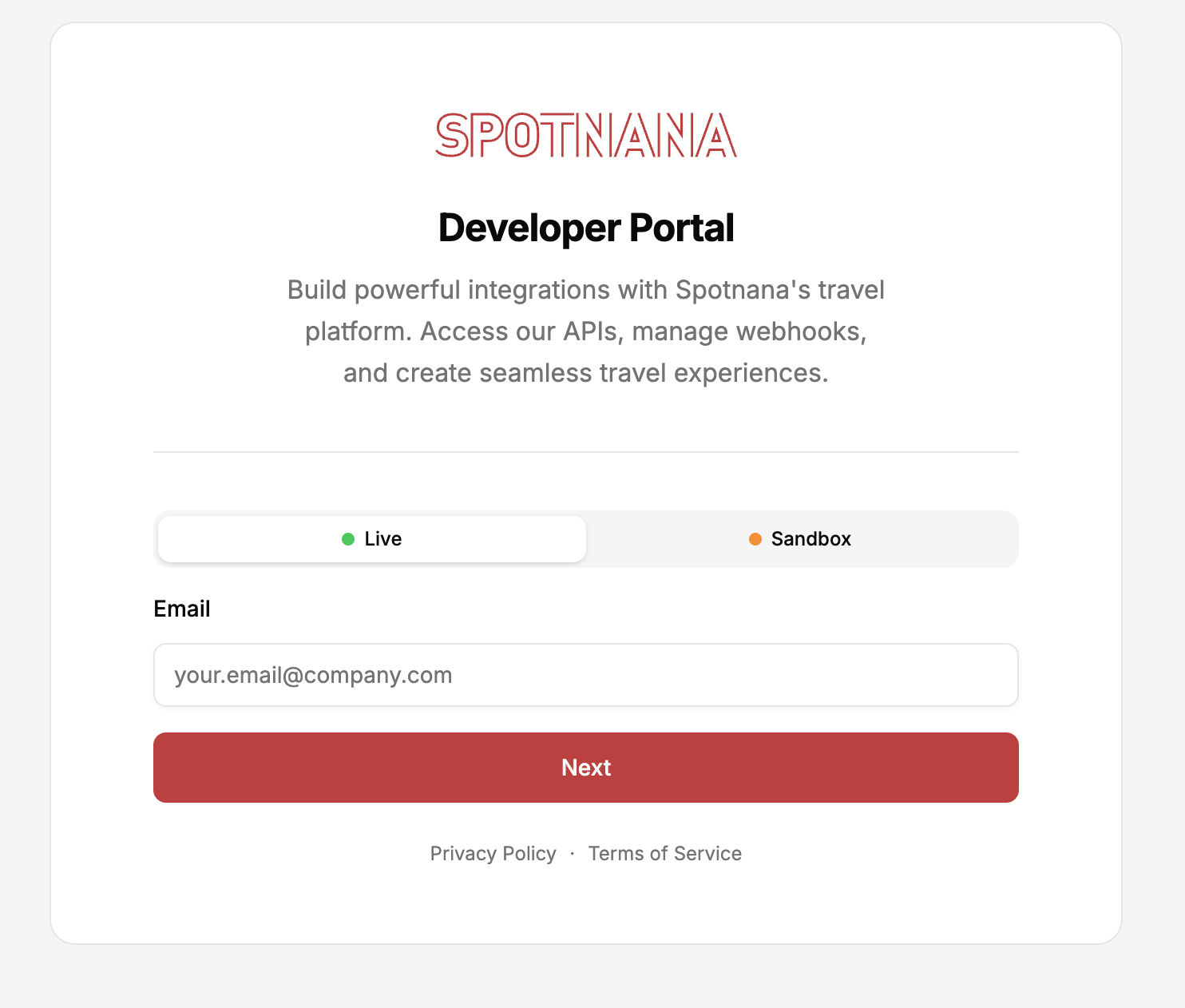
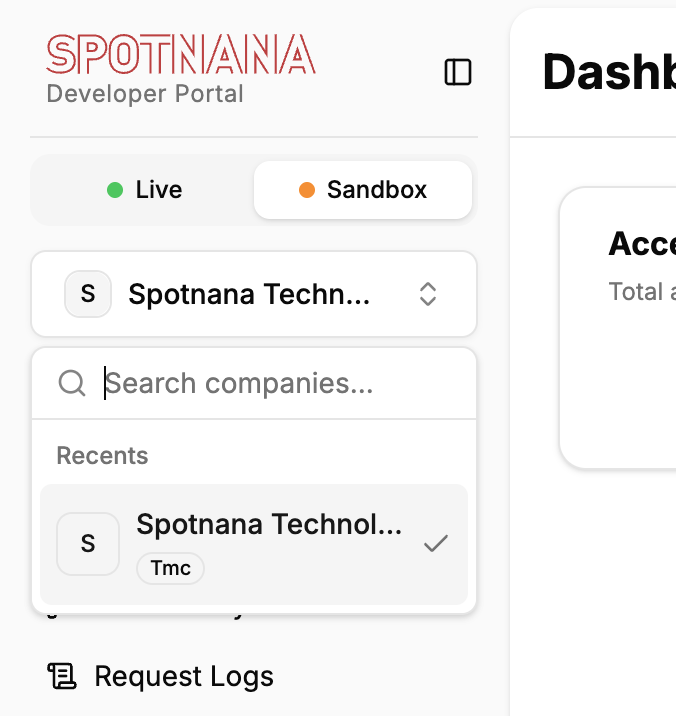
Once logged in, select your organization from the company menu. This should be the company that owns the specific webhook subscription that you wish to replay.
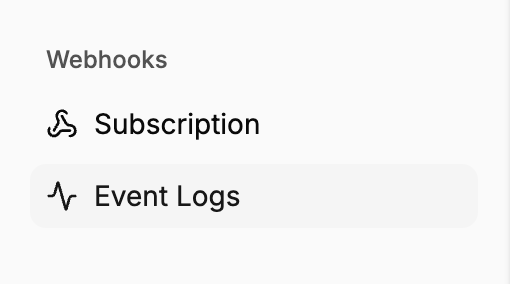
Go to the Webhooks > Event Logs section.
This opens the View Mode and displays a log of all webhook events that have been sent by Spotnana for all active subscriptions. The list includes events that have been successfully delivered, have failed, are currently retrying, are queued to be sent, and are canceled.
Switch from View Mode to Replay Mode using the toggle on the top right.
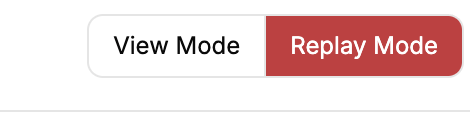
The Replay Mode displays all the webhook events that are available for you to replay.
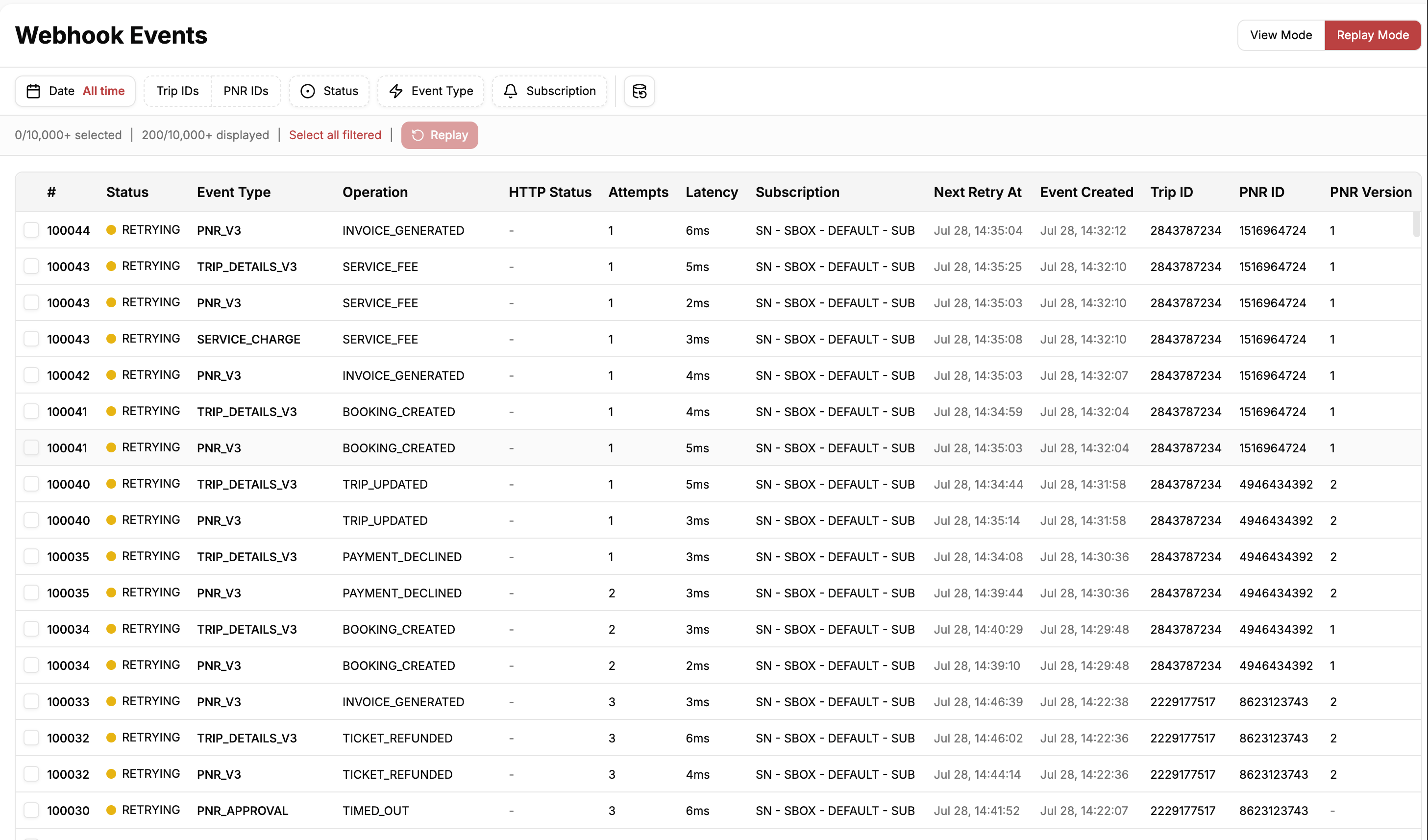
You can filter the event logs using date range, a list of trip IDs or PNR IDs relevant to the event, delivery status, event type (e.g., PNR_V3), and subscription name.
Note: The Replay Mode also displays events that have been successfully delivered, have failed, are currently retrying, are queued to be sent, and are canceled. You can replay any of the events from the list irrespective of the delivery status.
Select the event rows that you wish to replay.
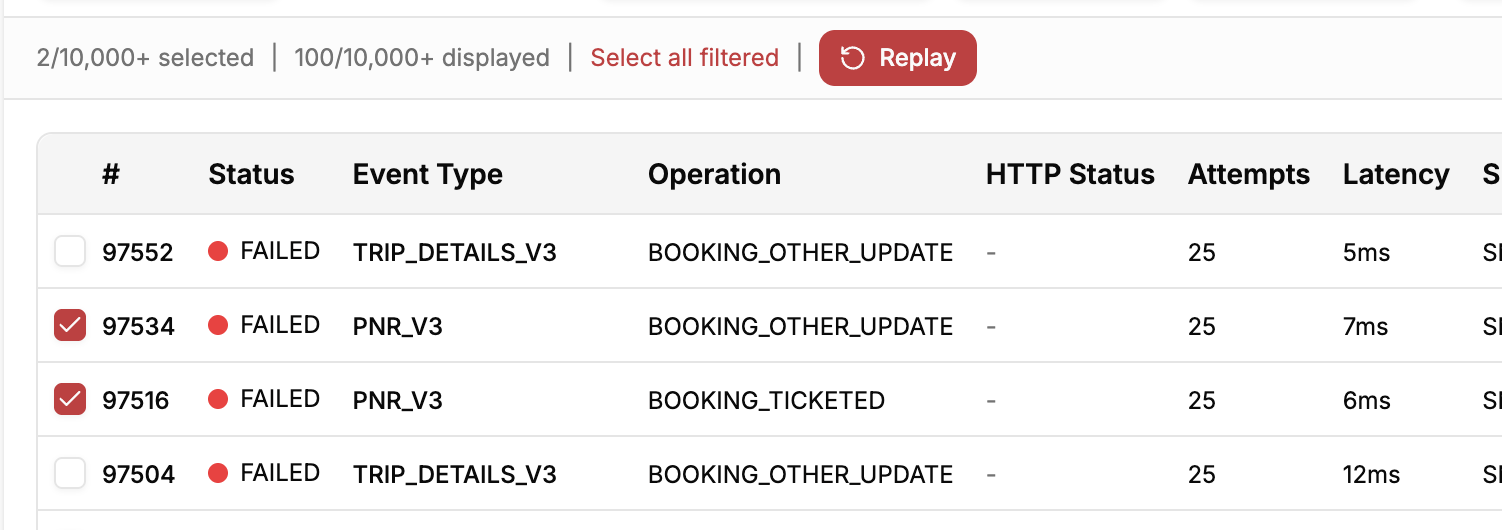
Click Replay.
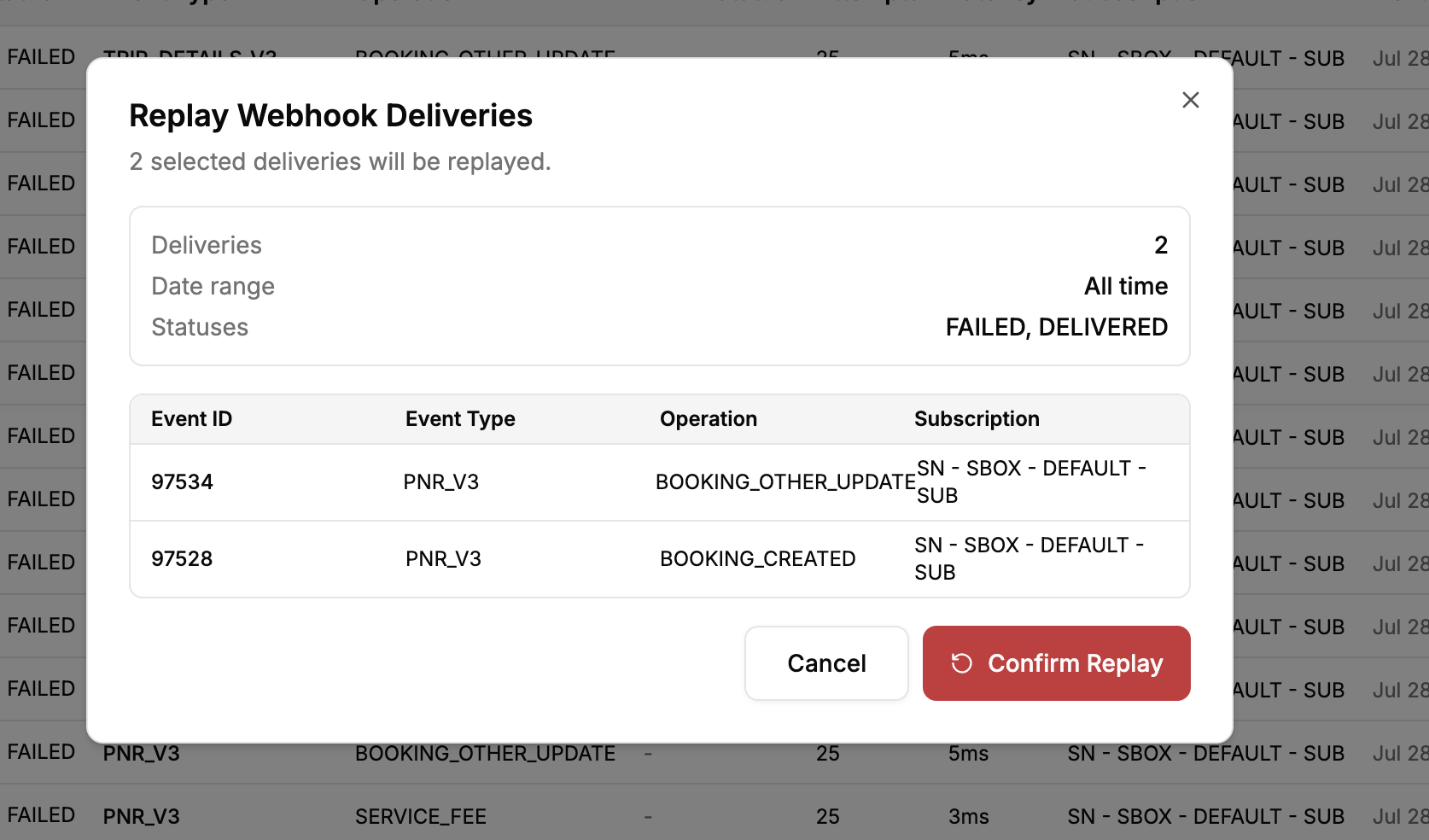
A confirmation page is displayed. Verify the events you've selected to replay and click Confirm Replay.
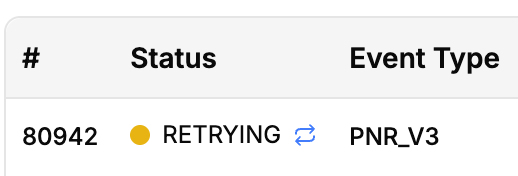
The screen automatically toggles to the View Mode. The events you replayed are displayed with a blue replay icon next to them in View Mode. You can monitor the status of the replayed events and check your endpoint to see if you've received the replayed event payload.

Fig: The replayed webhook delivery displayed in the View Mode.
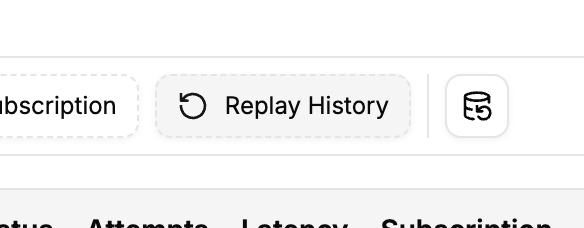
In View Mode, use the Replay History filter to view only the replayed events in the list. This helps you narrow down the events you want to monitor. All events with a status of Delivered indicate that your endpoint has successfully returned a 200 OK message and received the replayed event payload.
If you wish to replay the same event again or to replay other events, toggle to the Replay Mode and repeat the process from step 4.
Keep the following delivery and payload behaviors in mind before replaying an event:
- A replay creates a new delivery for each selected event. The original delivery record is preserved for audit purposes.
- The replayed delivery carries the same event ID and identical payload as the original.
- To your receiver endpoint, a replay looks like a fresh delivery. It is signed like any other webhook and receives a new webhook ID in the signature headers (
x-spotnana-webhook-id). - Replayed requests additionally include the header
x-spotnana-replay-id. This header contains the replay request's ID, so your endpoint can recognize and handle replay traffic in a special way, if needed.
The following table explains each delivery status:
| Status | Meaning | Context |
|---|---|---|
| Delivered | Successfully delivered | Your endpoint returned a 2xx response. |
| Retrying | Awaiting retry attempt | The last delivery attempt has failed and delivery is currently being retried automatically. The next attempt time is shown in the Next Retry At column. |
| Failed | Delivery failed permanently | All automatic retries were exhausted, or your endpoint returned HTTP 400. Note: For a 400 response, no automatic retries are initiated. It's marked as failed immediately. |
| Ready | Queued for delivery | The delivery is queued and will be attempted shortly. |
| Canceled | Delivery was canceled | The delivery was canceled. This typically occurs because the subscription was deactivated or the event payload could not be produced. |
Webhook events with any of the above statuses can be replayed from the Developer portal.
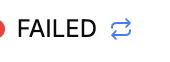
The status for the replayed events is displayed with a blue replay icon as shown below:
The following rules govern replay availability, request size, and delivery eligibility.
| Constraint | Detail |
|---|---|
| Retention window | Deliveries are available to view and replay for the current calendar month plus the previous three calendar months (UTC). For example, on July 22, 2026 the event deliveries back to April 1, 2026 (00:00 UTC) are available to view and replay. Deliveries older than this retention period cannot be viewed or replayed. |
| Replay size | A maximum of 5000 replay deliveries are allowed in a single request. |
| Original deliveries only | An already replayed delivery cannot be replayed again. To replay it, find the original event delivery in the Replay Mode and replay it again. |
| Any status is replayable | Replay is not restricted to failed deliveries. Successfully delivered events can also be replayed if needed. Note: When replaying an already successfully delivered event, your endpoint will receive a duplicate copy of the same event. Be sure to configure your endpoint to handle this replay scenario. See best practices for more information. |
Here are some best practices to keep in mind when using the replay feature:
- Before replaying an event ensure the receiver endpoint is healthy.
- When recovering from an incident, use the filters to view and replay only Failed events so you don't re-send events that already succeeded.
- Design your consumer to be idempotent. Use the event ID to identify duplicate deliveries or use the
x-spotnana-replay-idheader to handle the replay traffic separately. - A replayed payload is an exact copy of the original event. If you need the current state of a trip or PNR, fetch it from the respective APIs after receiving the event rather than relying on the replayed snapshot.
- Verify every replay. Use the Replay History filter to confirm the replayed deliveries have reached your consumer endpoint.
- Replay within the retention window. If an incident affected webhook consumption, schedule the replay promptly. Deliveries older than the retention period (i.e., older than the current month plus the 3 previous months) can no longer be replayed.